
How to Use the Dashboard
- Overview
- Dashboard Home
- Media
- Orders
- Payments
- Settings
- Store
- Location
- Additional Store Information
- Payment
- Customer Support
- Reports
- Artist Guide
- Art Gallery Store Quick Access
1. Overview
In this article, you will learn to navigate through your Art Gallery Store Dashboard. You can update your information, view reports, payments, and more.
2. Dashboard Home
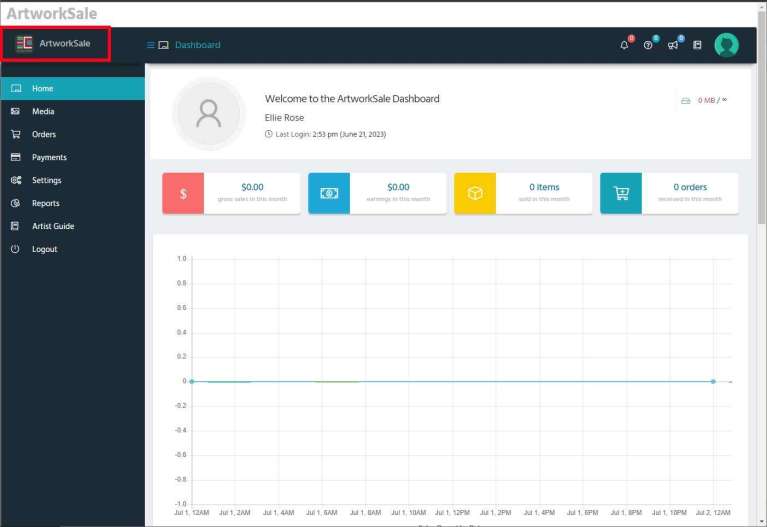
When you log in, you are brought to your Dashboard that gives you an overall view of your Art Gallery Store’s performance. You will also see tabs for quick access to more important information such as Reports, Artist Guide, and Settings.
One the Home tab, you can quickly see monthly gross sales, earnings, items sold, and orders received. Over time, you will also see store analytics, sales by product, notifications, inquiries, store stats, and latest topics.

3. Media Manager
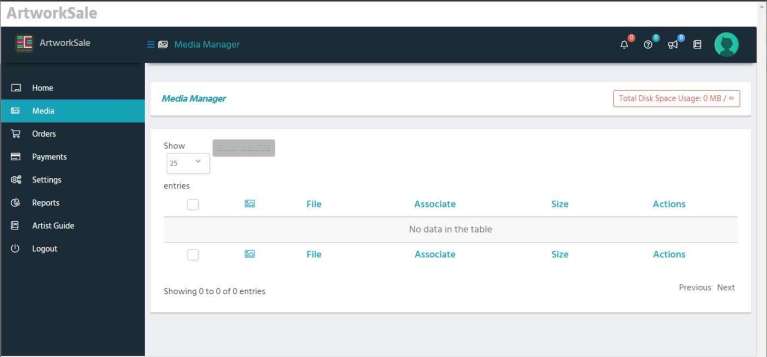
The Media Manager tab shows all the images you have uploaded to present your Art Gallery store to visitors. These images include your store profile image and banner if you added them when using the Store Setup Wizard.
Other images you upload will also appear here. You can add images like an artist image of yourself, mobile banner, images for an in-studio gallery. These images can be added or updated in the Settings tab shown below.
Product images are handled differently. To learn more about product images, see How to Send Large Images to ArtworkSale.
4. Orders
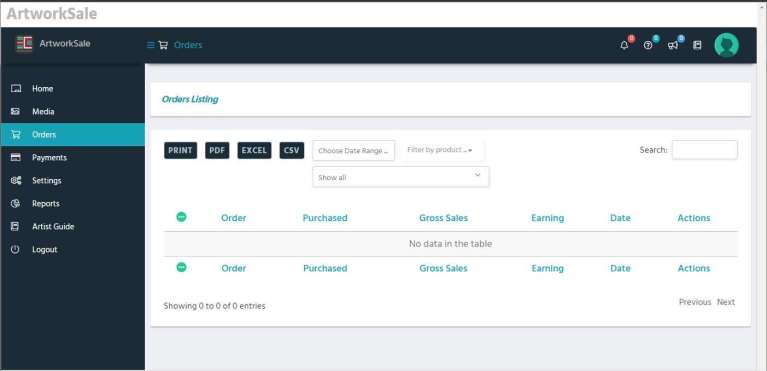
On the Orders tab, you will see a list of all the art print orders buyers have made from your Art Gallery Store. You’ll see order details such as the order number, what was purchased, gross sales, earnings, date, and actions.
5. Payments
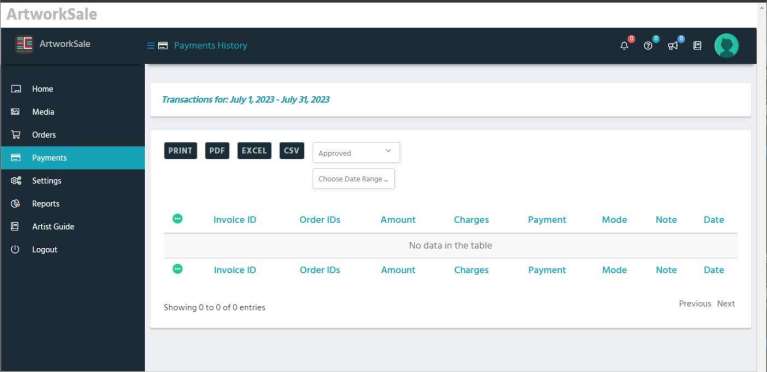
On the Payments tab, you will see details about payments that have been made. Set the filters to show the data you want to see. You can print or export the data in various file formats to meet your needs.
6. Settings
The Settings tab contains important information about your store. This includes settings that visitors to your Art Gallery Store will see as well as essential information required by ArtworkSale Admin. Some of the settings have been pre-set during the Store Setup Wizard process. You can complete the remaining settings and make updates anytime.
6.1 Settings – Store
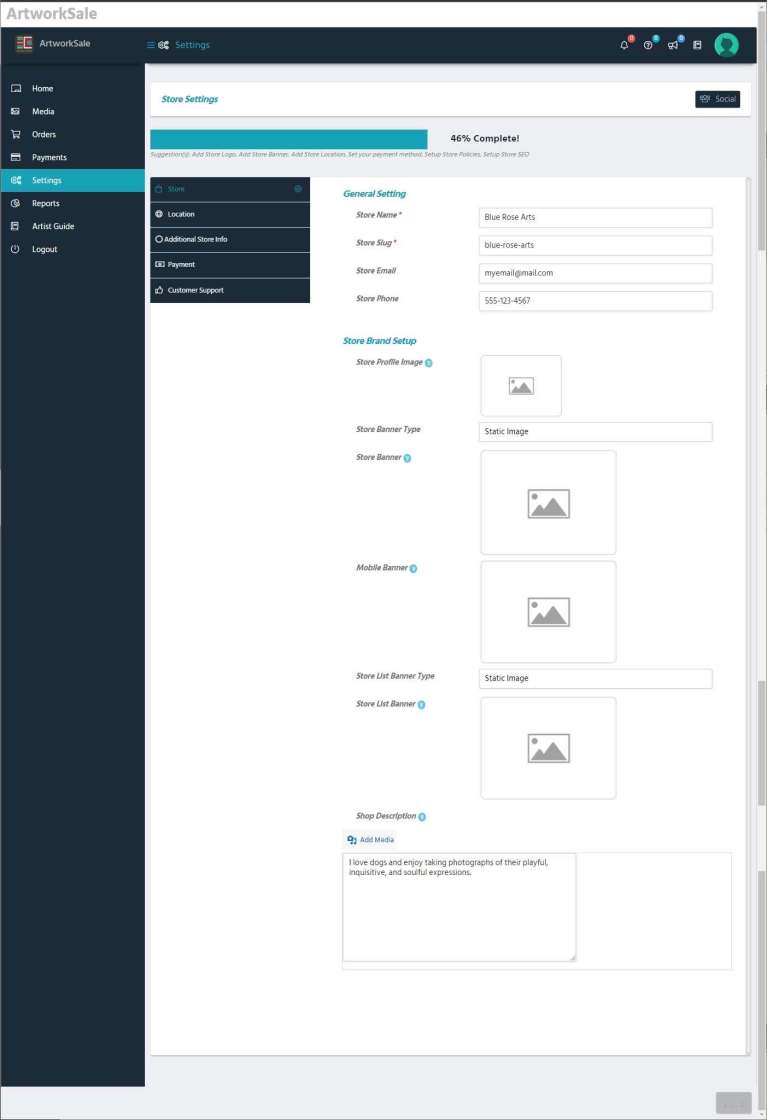
On the Store Settings tab you will see some prefilled settings that you submitted during the Store Setup Wizard process. These include General Settings for your store name, store slug, store email, and store phone. The Store Brand Setup includes images such as the store profile image and banners and a shop description.
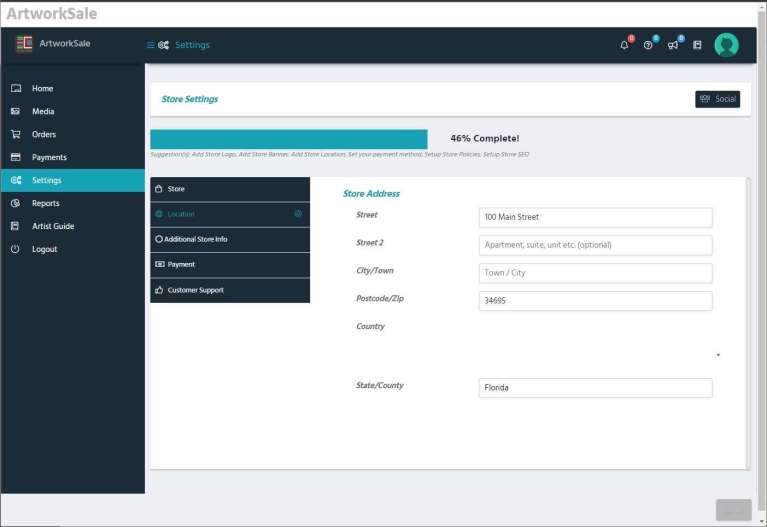
6.2 – Location
Your store address will appear on the Location tab. Make address updates as needed on this tab. This information is not shown to visitors of your Art Gallery Store, it is used for interfacing with ArtworkSale only.
6.3 – Additional Store Information
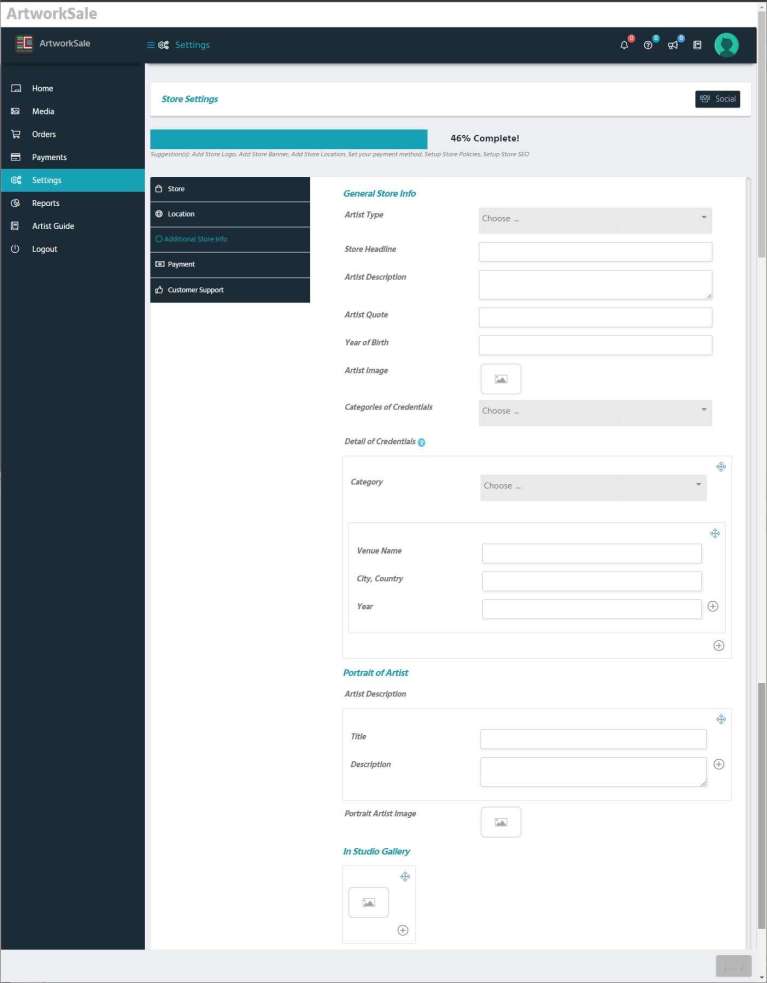
On the Additional Store Information tab, you can add more details to your Art Gallery Store so that visitors can learn more about you and your art. The more details you provide for visitors, the more informed they are and the more memorable you will be. The is an easy step to help you build a following, give you a boost over the competition, and help increase your SEO.
You can add General Store information such as artist type, description, and quote. Providing credentials will help boost your credibility, expertise, and authority.
The Portrait of Artist section allows you to provide a detailed description about yourself and to add a portrait image of yourself.
The In Studio Gallery displays images of you, the artist at work, or any special images relating to producing your artwork. This gives a visitor an insider’s peek at you, the talented artist at work.
6.4 – Payment
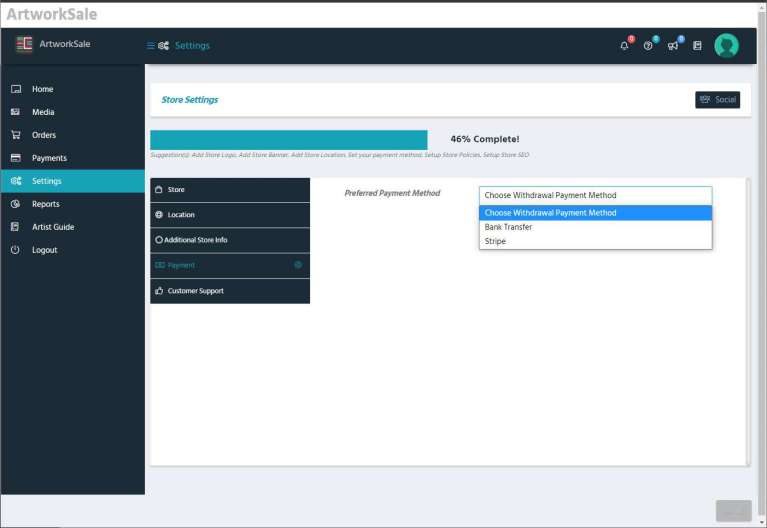
On the Payment tab, you control how you want your commission to be paid from ArtworkSale.co. Select your preferred payment method by choosing either by bank transfer method or via Stripe if you have a Stripe account. Fill in the required information for the method of your choice.
6.5 – Customer Support
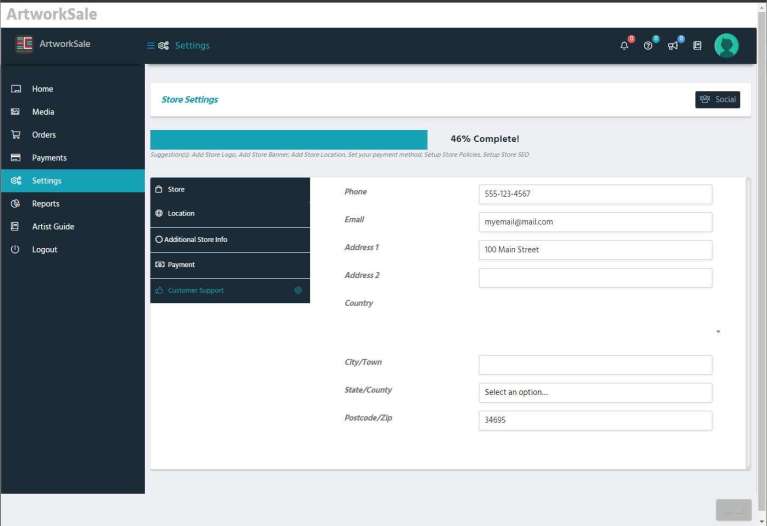
The Customer Support tab tells ArtworkSale how to get in touch with you should any issues happen about your artwork or by customer request.
7. Reports
The Reports tab allows you to view data instantly. You set the date and report parameters and then the data will be charted for instant viewing. Choose to view reports on gross sales, total earnings, total withdrawal, total refund, orders placed, and items purchased. You can also choose to print the results.

8. Artist Guide
Click the Artist Guide link to access knowledgebase articles that help you make the most of your ArtworkSale experience. Learn all about setting up your Art Gallery, Dashboard, and Profile Manager. Learn how to take great photographs of your artwork and how to submit them to ArtworkSale.

9. Art Gallery Store Quick Access
For quick access to your Art Gallery Store that visitors will see, click on the store link in the upper left corner of your Dashboard:
If you need assistance, we are here to help you. Contact our Support Team at support@artworksale.co.